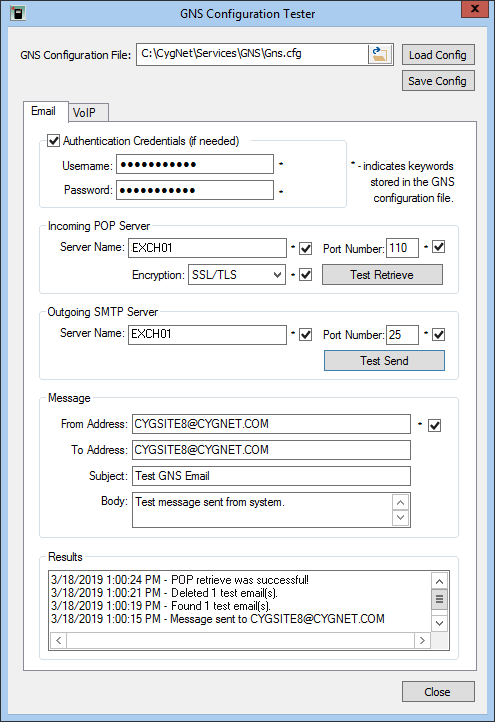
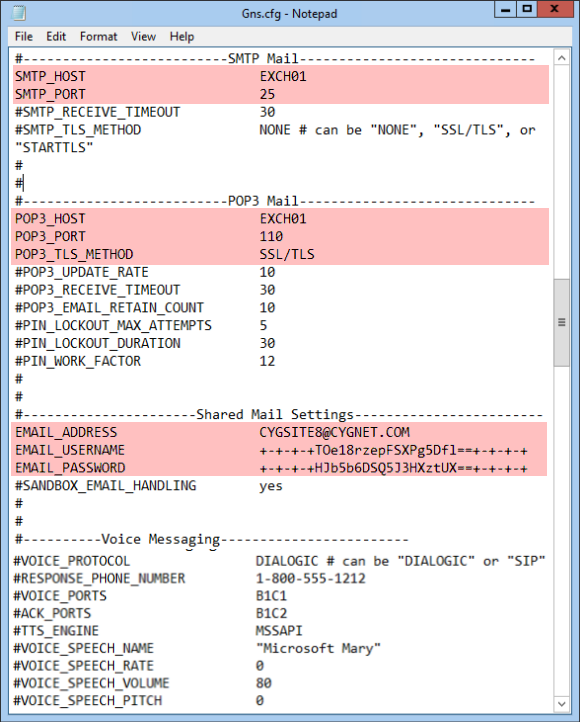
The Email page of the GNS Configuration Tester defines parameters for the email keywords in the GNS configuration file and provides an interface for testing the email settings.
The following is an example of the Email page of the GNS Configuration Tester dialog box with its corresponding GNS configuration file settings:
|
|
|
| Email page of GNS Configuration Tester with corresponding Keywords in the GNS Configuration File | |
The properties on the Email page of the GNS Configuration Tester dialog box are described here.
If necessary, check with your network administrator or internet service provider to find out the name of your POP and SMTP servers, port numbers, and authentication credentials. These settings also can be changed using the Config File Manager.
To Configure the Email Properties in the GNS Configuration Tester Utility
-OR-
| Field | Description | Associated Gns.cfg File Keyword |
|---|---|---|
|
GNS Configuration File |
The path to the GNS configuration file (Gns.cfg). Click the folder icon to browse to the file on the CygNet host. The relevant parameters from the Gns.cfg file will be loaded into the utility. |
N/A |
|
Authentication Credentials (if needed) |
||
|
Username |
The username for the email server, if required. This value is shared by both the POP3 and SMTP email servers. It is required for the Incoming POP3 Server (for receiving acknowledgment reply emails) and optional for the outgoing SMTP Server (for sending SMTP mail messages). The username is encrypted with the common encryption key file. |
EMAIL_USERNAME |
|
Password |
The user password for the email server, if required. This value is shared by both the POP3 and SMTP email servers. It is required for the Incoming POP3 Server (for receiving acknowledgment reply emails) and optional for the outgoing SMTP Server (for sending SMTP mail messages). The password is encrypted with the common encryption key file. The password for the email server cannot be decrypted, as it is only ever compared against. |
EMAIL_PASSWORD |
|
Incoming POP Server |
||
|
Server Name |
Specifies the POP3 server host name or IP address. Note: You can disable email and SMS acknowledgment by removing the POP3 Server Name and saving the configuration. See Acknowledging Notifications Via Email. |
POP3_HOST |
|
Port Number |
Specifies the POP3 server send port. The default port is 110. |
POP3_PORT |
|
Encryption |
Specifies the encryption method used for the incoming POP3 server. Options include: None, SSL/TLS, or STARTTLS. |
POP3_TLS_METHOD |
|
Test Retrieve |
Click to send and retrieve a test message from the POP3 server using the From Address. |
N/A |
|
Outgoing SMTP Server |
||
|
Server Name |
Specifies the SMTP server host name or IP address. Note: See SMTP_TLS_METHOD for information about encrypting outgoing notifications. |
SMTP_HOST |
|
Port Number |
Specifies the SMTP server send port. The default port is 25. |
SMTP_PORT |
|
Test Send |
Click to send a test message from the SMTP server to the email address specified in To Address. |
N/A |
|
Message |
||
|
From Address |
Specifies the return address for email notifications, such as name@company.com. This is the "return" address that will show on the outgoing email. |
EMAIL_ADDRESS |
|
To Address |
Specifies the address where to send a test message. Must be populated to enable the Test Send button. |
N/A |
|
Subject |
Specifies a subject of the response message. |
N/A |
|
Body |
Specifies the content of the test message. |
N/A |
|
Results |
Displays the success or failure of the Test Retrieve or Test Send, including a date and timestamp. |
N/A |

|
|
|

